Teachers, here is a list of 7 essential applications to boost your lessons
Greg Taieb · · 6 min read
A few months ago I started giving courses at university and quite quickly I realized that a large part of the applications that I used on a daily basis could be useful to me and that for certain very specific needs on the contrary I was going to need to find new alternatives.
In any case, what emerged is that we now have excellent tools for following or giving courses. Powerful, collaborative tools that are permanently accessible via a browser or smartphone.
I therefore decided to share with you the list of these applications and how they helped me at each stage of the teaching cycle.
The applications are essentially mobile and I have specified each time on which platforms they are available.
1. To create the course: Scrivener (iOS-€19.99)
When I started preparing my lessons I was quickly overwhelmed by the variety of resources that I was accumulating and I wondered how I would manage to synthesize and organize all this information: links, texts, images, etc.
That's when I discovered Scrivener, an application designed to write and organize a large amount of information since it is widely used by writers and screenwriters.
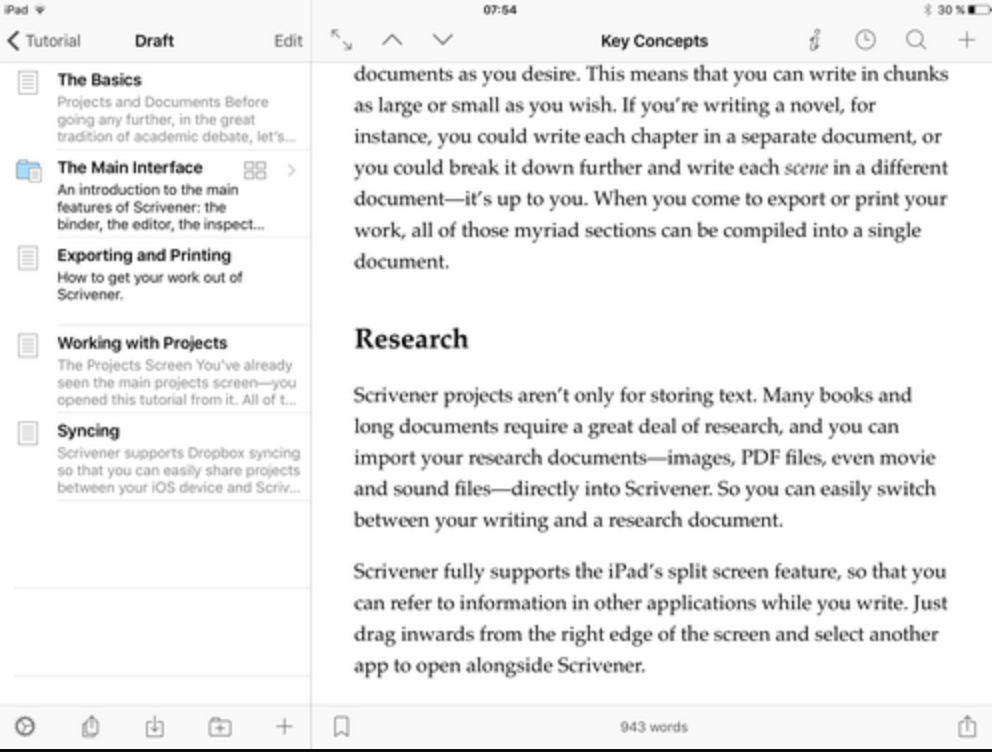
With scrivener you create your large sections and can add your reference notes and annotations. Once everything is structured you can export it in Word format.
It is clearly not cheap since I paid almost €20 for it but I do not regret this purchase for a second as this app helped me where paper and Google Docs had failed.
2. To store and share: Google Drive (web/iOS/Android)
Google Drive is my favorite storage platform. I used it to:
- Save my course materials
- Share my materials with students
- Store the homework that students sent me
I had a folder for each course and a sub-folder dedicated to sharing. The students only saw the contents of this subfolder.
Note that what I describe here would work just as well if you were using Dropbox or Onedrive.
3. To manage students: Airtable (web/iOS)
When you have several dozen students to manage and for each one you have to keep track of absences, presentations and grades, you risk quickly finding yourself cramped in an Excel file.
This is the reason why I created a database at the start of the semester via the application Airtable.
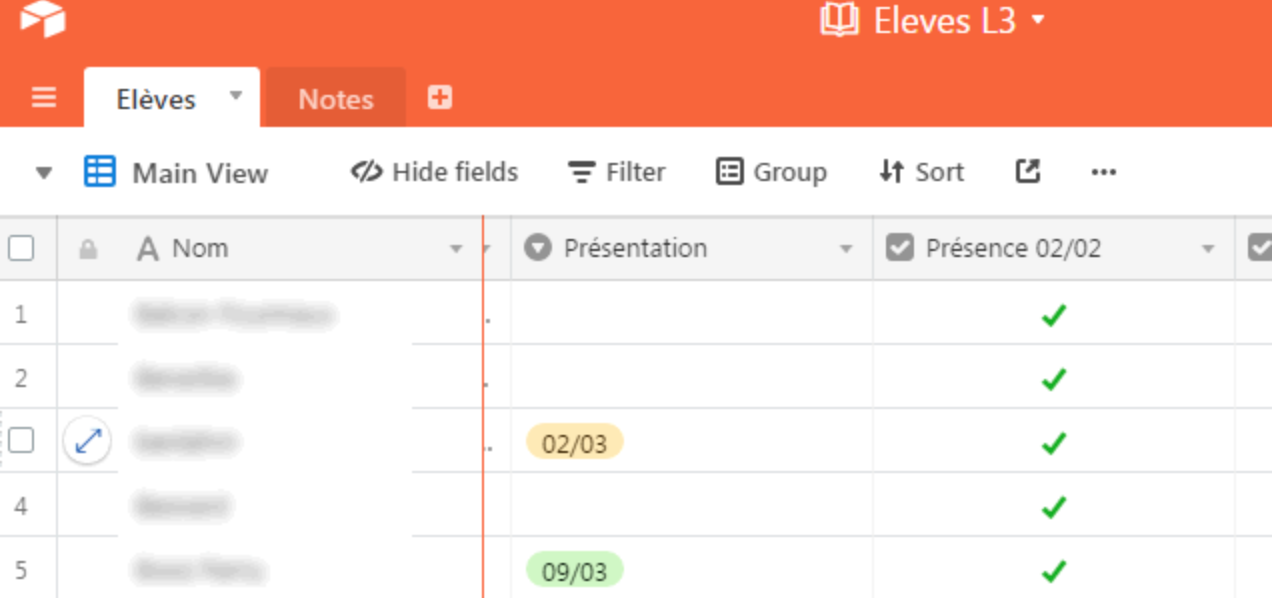
If you don't know Airtable, know that it’s a real gem for anyone looking to manage a database without any hassle. It is accessible on the web or from any iOS device.
So in my case I was able to create a form for my students in just a few minutes. Once there, they could indicate their choice of topic for a presentation and leave me their email if they wanted to discuss the course. So it was literally them who filled in my database and then all I had to do was add missing fields (class attendance, comments, notes, etc.).
Airtable is really the central element of my system.
And I received an email alert each time a student filled out the form.

Last advantage, the database can be duplicated in one click to start from a blank base next semester.
In order not to leave the data online, I archive each database at the end of the semester and delete its content.
4. To communicate by email: Mailchimp (web/ iOS/ Android)
Having students' emails (for those who had accepted of course) allowed me to communicate regularly with them to:
- Send lessons or information
- Answer questions
- Make reminder messages as deadlines approach (files due, exams)
For communications for all students I use Mailchimp which allows you to create grouped emails, design and responsive site for which I have analytics (opening rate, clicks on links).

5. To take quizzes or collect feedback: Typeform (web)
There are a large number of online tools offering quizzes. Typeform is by far my favorite because of its simplicity of use, its careful design, the fact that it is 100% responsive (most students respond via their smartphone).
Finally in terms of analytics, the results are very easily usable.
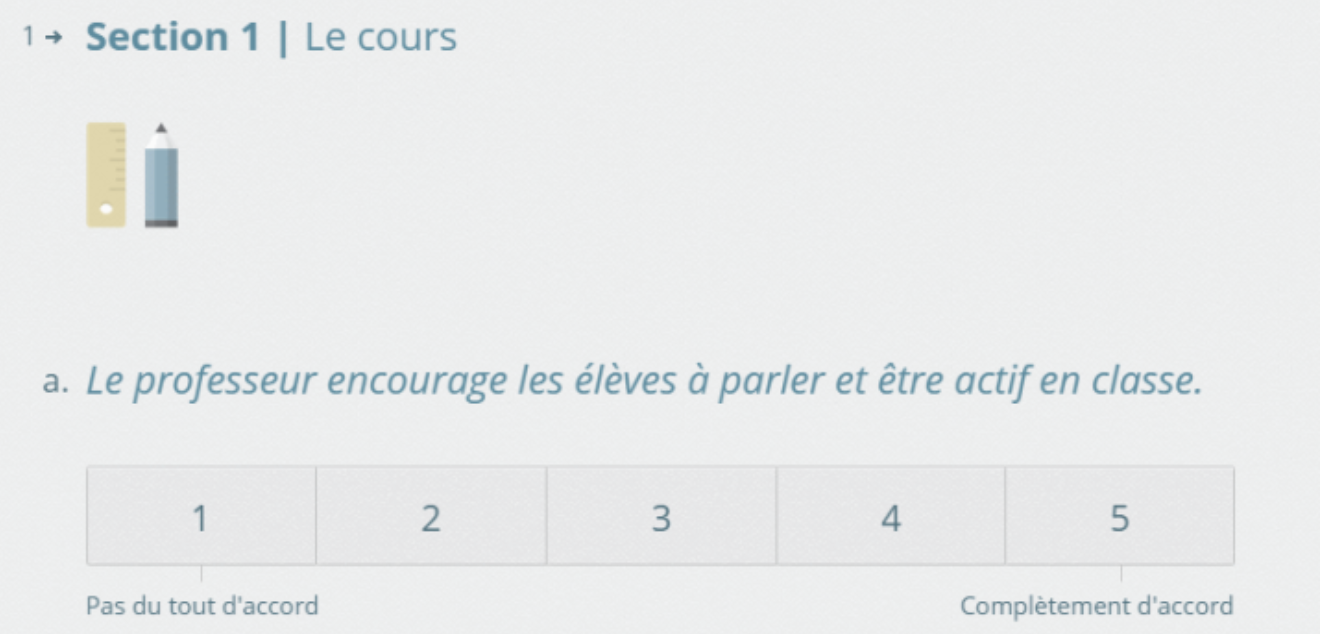
At the end of the semester, I asked the students to rate the course (and the teacher ;-)) in a completely anonymous way and the results collected were a gold mine.
6. To digitize: Scannable (iOS)
Not everything is digital yet so when it comes to saving a table, a copy or an attendance sheet, I use what in my opinion is by far the best scanner. The excellent Scannable app available only on iOS. Ultra fast, managing several pages and automatically saving to Evernote, it's really an essential.
For consistency, everything I scanned ended up on Google Drive.
7. To correct copies: Good reader (iOS - €4.99)
The iPad is an incredible consultation tool: portable, autonomous, powerful, I made it the main tool for correcting my copies.
I received files by email. With one click they were saved on Google Drive. That's when Good reader took over, this excellent document reader on iOS allowed me to:
- Download the files locally
- Annotate them with my comments for the students
- Republish them (with annotation) on Google Drive
This list is far from exhaustive but I was struck by the way in which these applications facilitated my work of preparation, monitoring and relationships with students.
In particular the email part and the management of feedback via a quiz.
Finally the fact of being able to manage the reception, correction and return of copies from start to finish without at any time handling a sheet of paper and remaining on an iPad really demonstrated to me that in certain cases we can work more efficiently on iPad than on PC.
If teachers go through this and use other applications, I would be happy to enrich the article.